3D
Animation
101
Blender
4.5
An introduction to Blender and 3D Animation
Still from the film Flow: a grey cat with glowing orange eyes sits in a wooden boat in a flooded ruined city, backlit by the sun, with a hand-lettered Flow title and a Festival de Cannes 2024 Un Certain Regard laurel
‘Flow’, 2024 — Gints Zilbalodis
An Introduction to Blender and 3D Animation02
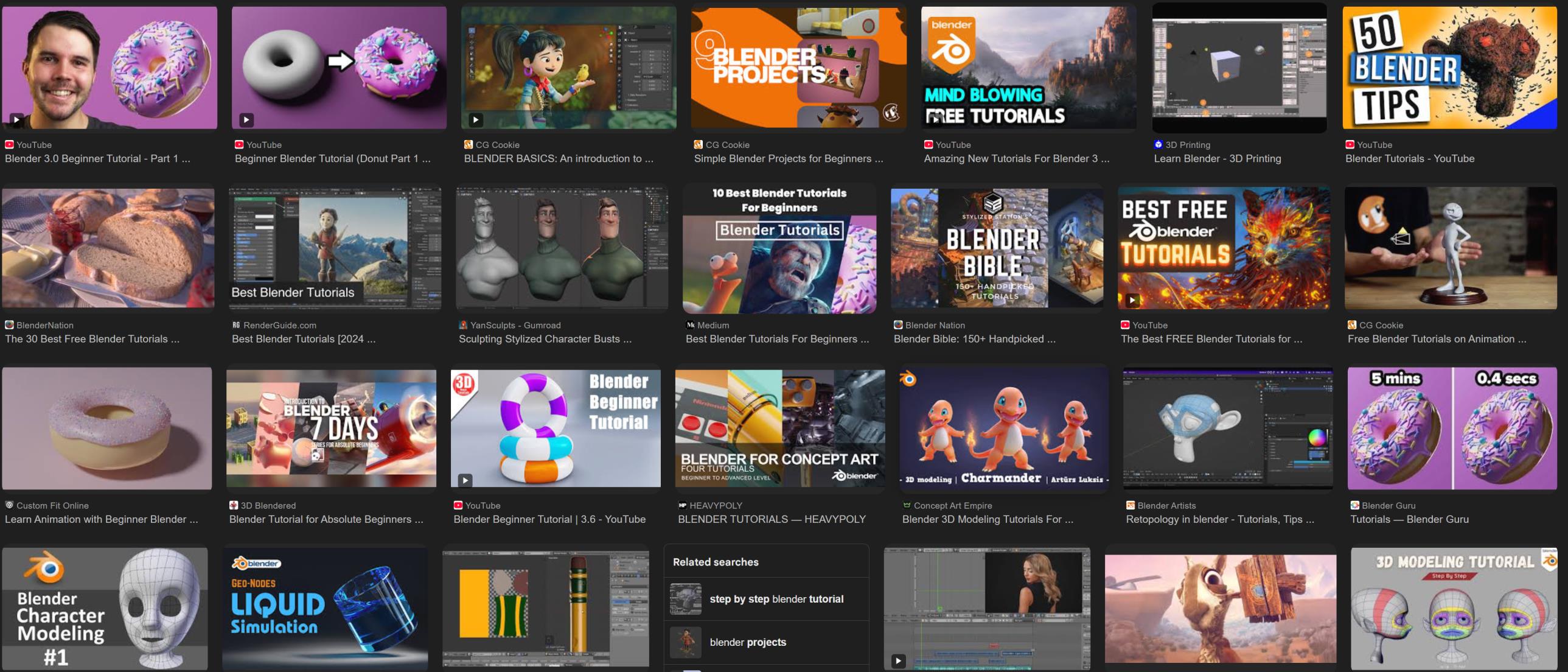
Dark-themed YouTube search results grid showing Blender tutorial thumbnails, including donut tutorials from CG Cookie, Blender Guru and Blender Bible
An Introduction to Blender and 3D Animation03
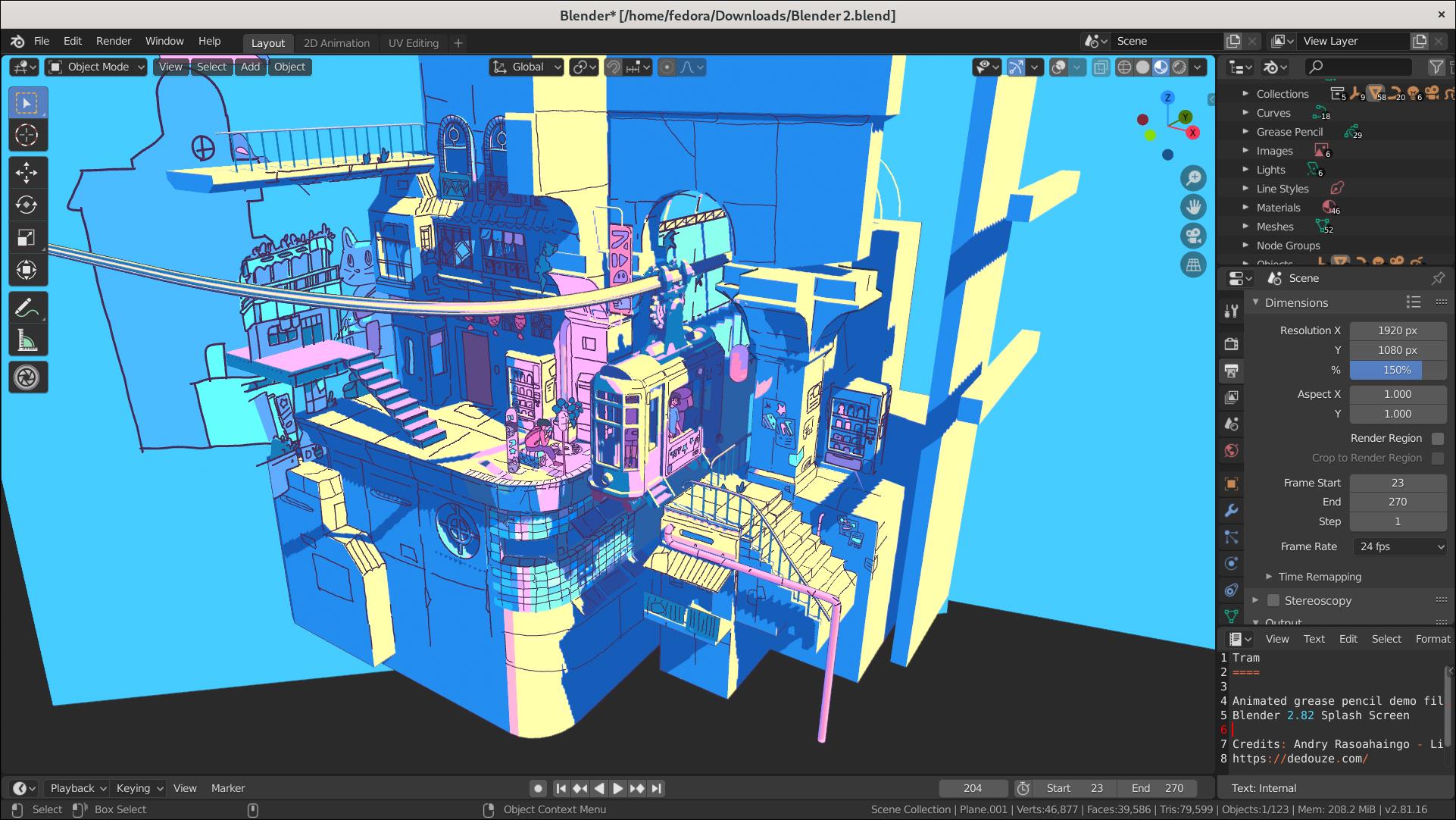
Blender 2.82 window: viewport showing a colourful flat-shaded animation scene of buildings, a tram and cats, an Outliner on the right and a console at the bottom
Blender 2.82 — artwork by Dédouze
An Introduction to Blender and 3D Animation04

Blender UI

The workspace, panel by panel

An Introduction to Blender and 3D Animation05
Blender UI//The interface

The interface is divided into areas
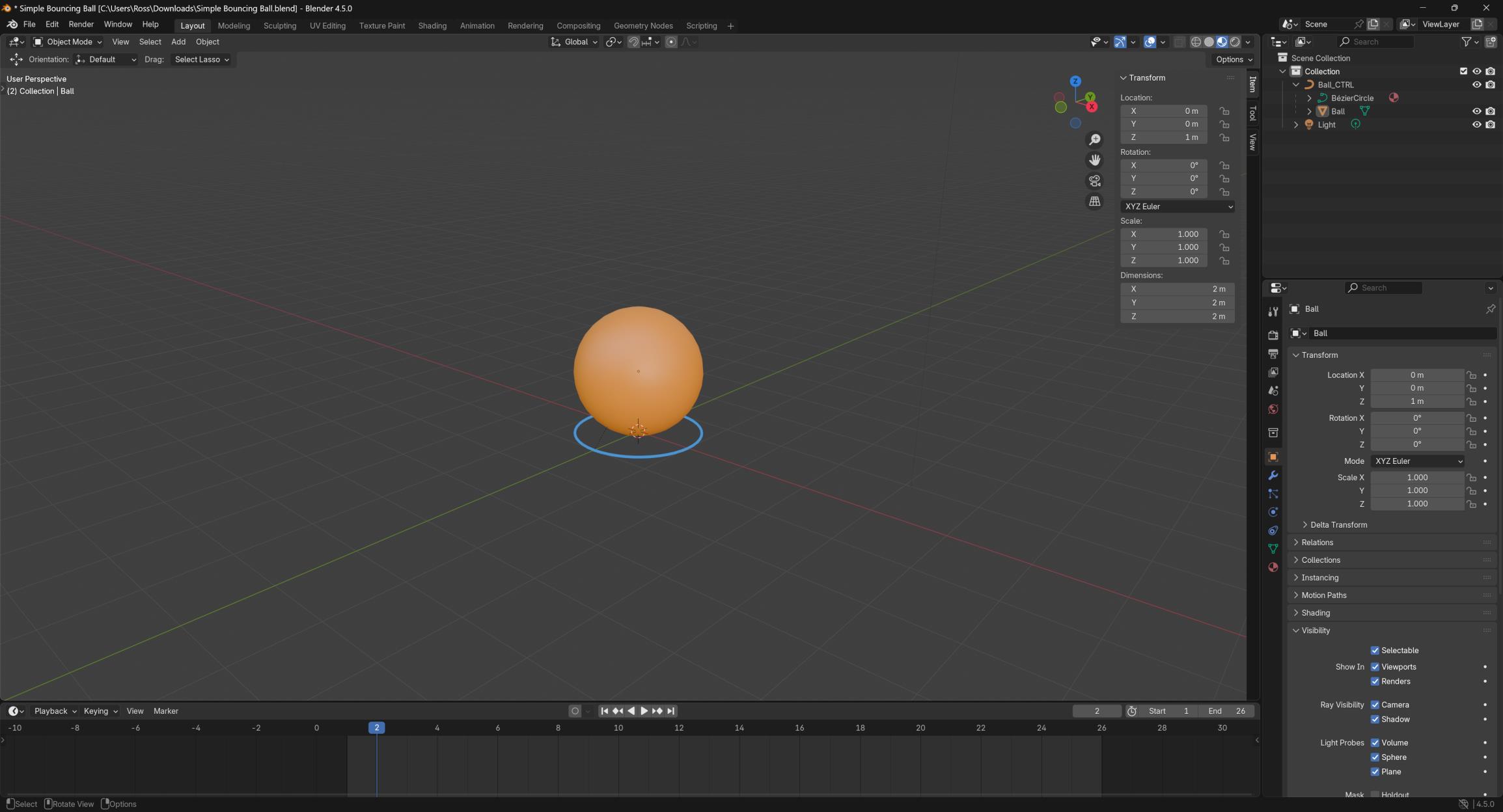
Blender 4.5.0 window with Simple Bouncing Ball.blend open: an orange ball selected in a grey viewport, a Transform floating panel, an Outliner, a properties editor and a timeline at the bottom
Viewport
Outliner
Timeline

The window is a set of areas — each one can be moved, resized, and switched to a different panel.

An Introduction to Blender and 3D Animation06
Blender UI//Viewport

Everything happens in the viewport

Blender 4.5.0 window: the viewport, the large area where the 3D scene is viewed and edited
Viewport

Where you see into, and interact with, the 3D scene.

An Introduction to Blender and 3D Animation07
Blender UI//Timeline

The animation lives on the timeline

Blender 4.5.0 window: the timeline strip at the bottom of the window
Timeline

Where the animation plays, and where things exist in time.

An Introduction to Blender and 3D Animation08
Blender UI//Outliner

The outliner lists the scene

Blender 4.5.0 window: the Outliner panel, top right, listing the scene’s objects
Outliner

Where the objects in the scene are listed, and selectable.

An Introduction to Blender and 3D Animation09
Blender UI//The editor

Parameters are edited in the properties editor

Blender 4.5.0 window: the properties editor, bottom right, showing the selected object’s parameters
Editor

Where objects, and their parameters, are edited.

An Introduction to Blender and 3D Animation10
Blender UI//Tabs

Each tab holds a different sub menu

Blender 4.5.0 window: the vertical column of icon tabs on the left edge of the properties editor
Tabs

Down the side of the properties editor, each icon tab opens a different panel.

An Introduction to Blender and 3D Animation11
Blender UI//Areas

Areas can be moved, and switched

Blender 4.5.0 window: the seam where the viewport area meets the outliner and editor areas
Areas

The adjustable windows of the program — movable, and switchable to different panels.

An Introduction to Blender and 3D Animation12
Blender UI//The menu bar

Core menus, and layout tabs, up top

Blender 4.5.0 window: the menu bar across the top, with core menus and the tabs for different layouts
Menu bar

Where the core menus sit, along with the tabs for different layouts.

An Introduction to Blender and 3D Animation13

Navigation

Moving through the 3D space, with the mouse

An Introduction to Blender and 3D Animation14
Navigation//Controls

The mouse wheel moves you through the space

ZoomScroll wheelMove in and out of the scene
OrbitWheel click+DragCircle around the scene
PanWheel click+Shift+DragSlide the scene sideways

Lost? Select View / Frame All, top left, to re-centre the scene.
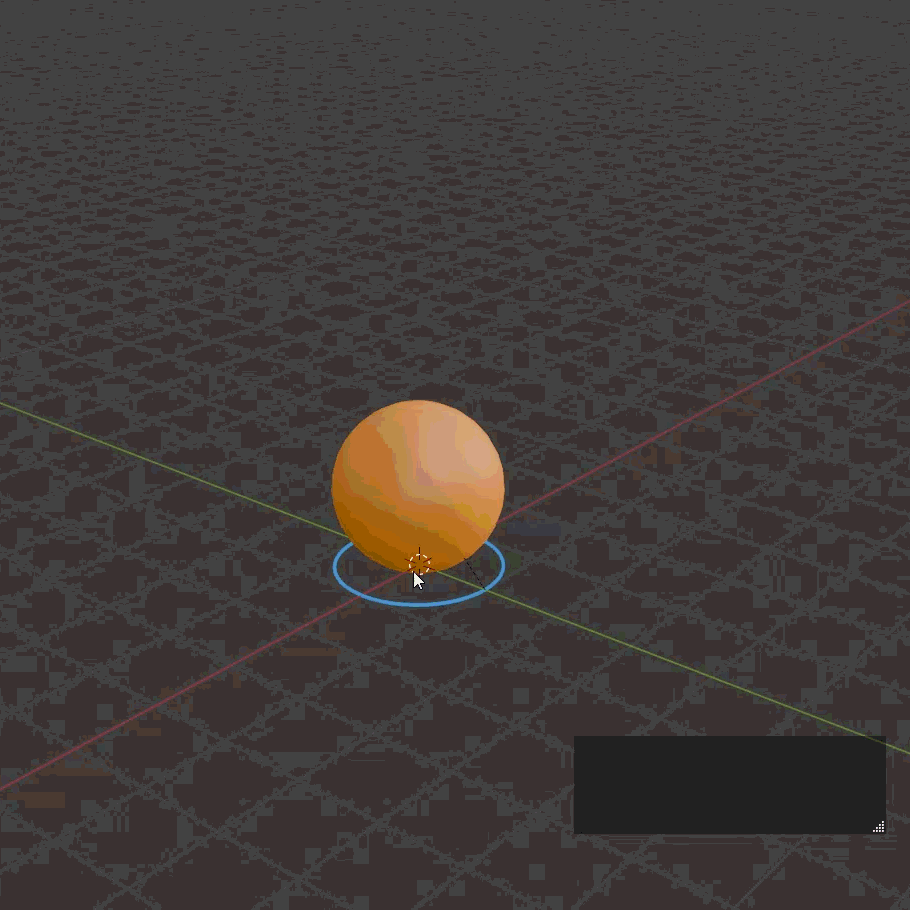
Dark viewport: an orange ball with a blue selection ring and a mouse cursor over it, red and green axis lines crossing behind
An Introduction to Blender and 3D Animation15
Navigation//The gizmo

The gizmo steers the view

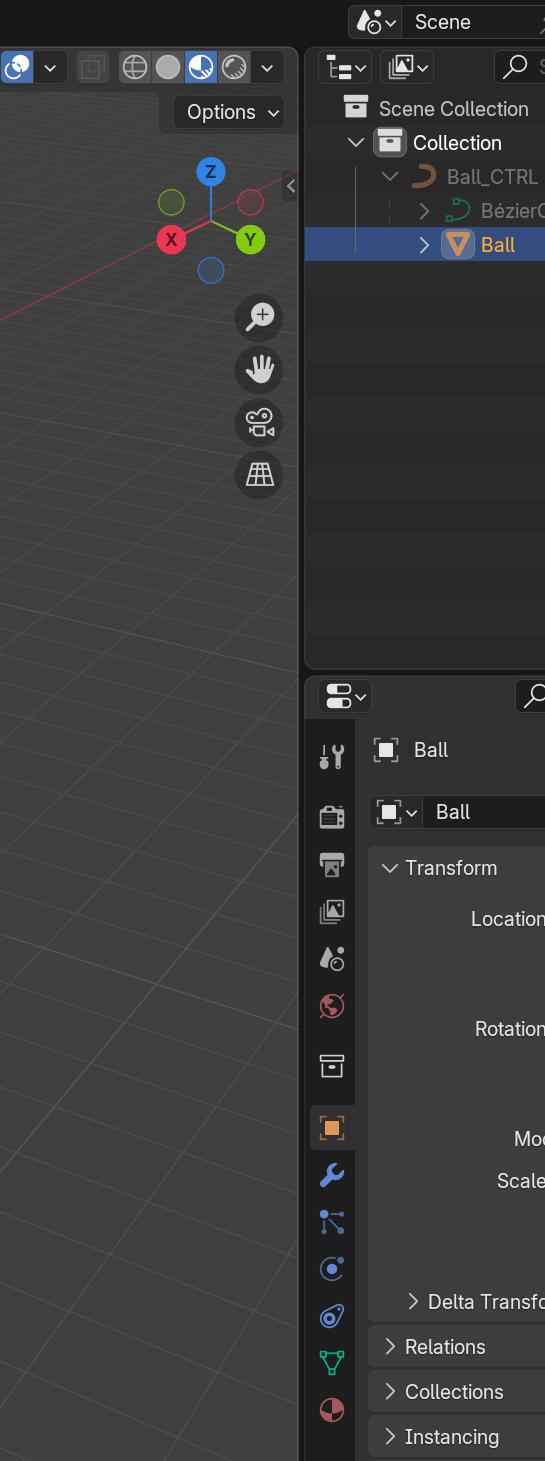
  • Top right of the viewport, the navigation gizmo
  • Click and drag it to orbit the scene
  • Select an axis — X, Y, or Z — for a flat, perspective-free view
XLeft
YFront
ZTop
-XRight
-YBack
-ZBottom
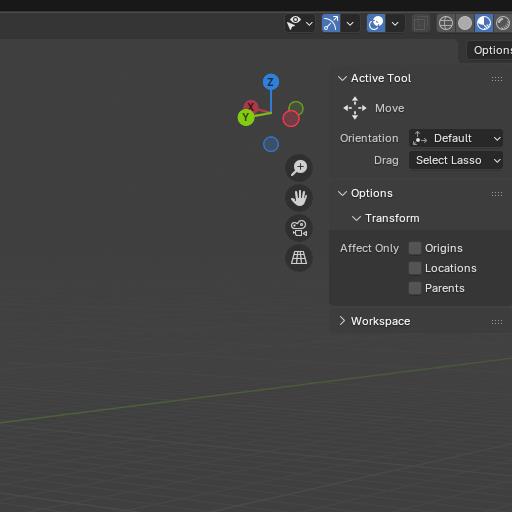
Viewport crop: the navigation gizmo top right (Z blue up, X red, Y green) beside Active Tool: Move, Options, Transform and Workspace side panels
An Introduction to Blender and 3D Animation16

Transformation

Position, rotation, and scale

An Introduction to Blender and 3D Animation17
Transformation//The tools

Select the object, then Shift + Space

  • To transform an object is to change its position, rotation, or scale
  • Click the object first, to highlight it
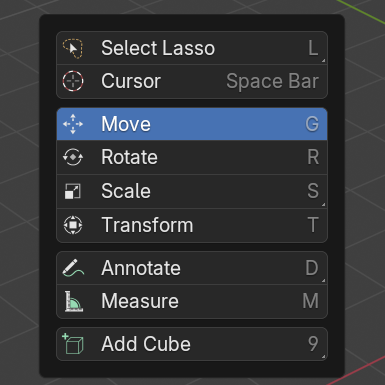
  • Shift + Space opens the transform menu
  • Move, Rotate, Scale — or Transform, all at once
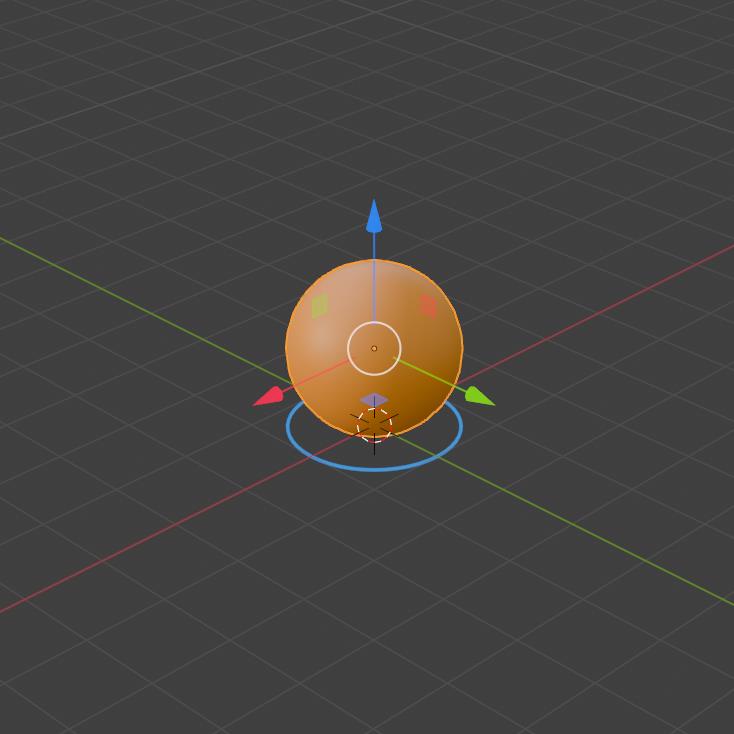
An orange ball with a transform gizmo on a grey grid floor: blue Z arrow up, red X and green Y arrows, white circle at the centre
Dark Shift+Spacebar context menu: Select Lasso (L), Cursor (Space Bar), Move (G, highlighted), Rotate (R), Scale (S), Transform (T), Annotate (D), Measure (M), Add Cube (9)
An Introduction to Blender and 3D Animation18
Transformation//The gizmo

The gizmo is a handle for the object

  • Select a transform option, and a gizmo appears
  • A gizmo is a 3D handle for changing the object
  • One axis — transform along a single axis
  • The squares between two axes — transform along both
  • The white circle — transform relative to the camera
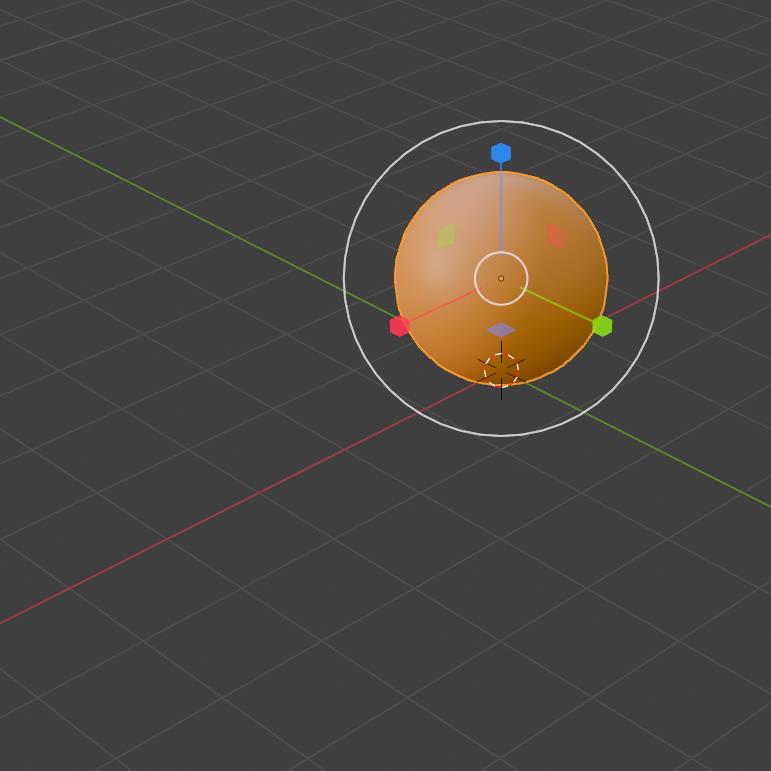
An orange ball with a transform gizmo emphasising the large white scale circle around it; blue Z cube, red X and green Y hexagons, purple centre square
Dark Shift+Spacebar context menu with Move highlighted
An Introduction to Blender and 3D Animation19

Animation

Values, changed over time

An Introduction to Blender and 3D Animation20
Animation//Values

Animation is change over time

  • To animate an object, change its properties over time
  • Location, rotation, and scale are all properties
  • They sit in the transform panel, in the properties editor
  • Change these values over time, and the object animates
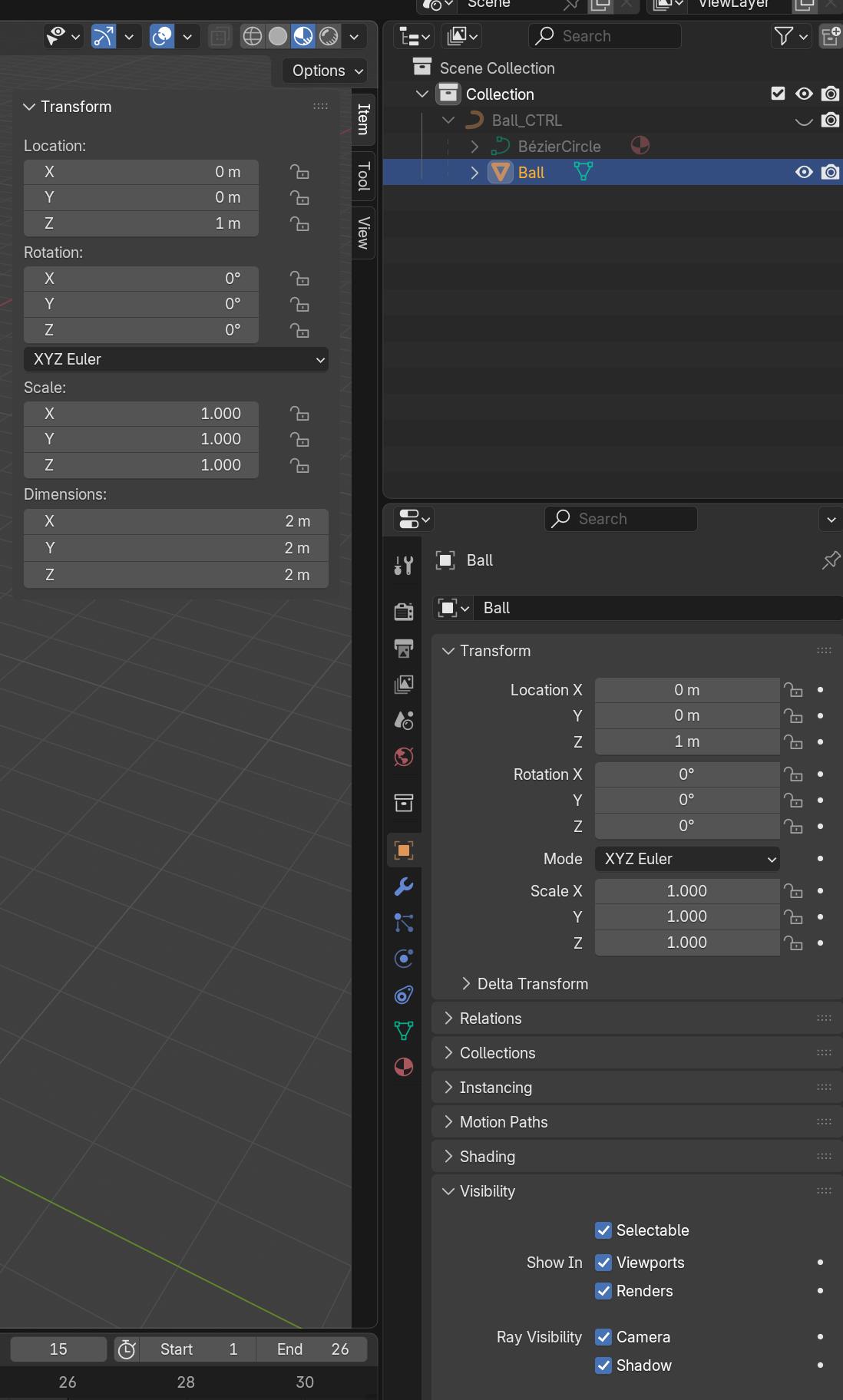
Tall crop of the Blender viewport: Transform panel (Location X 0m / Y 0m / Z 1m, Rotation 0°, Scale 1.000, Dimensions 2m), an Outliner and the full properties editor
Tall narrow crop: the navigation gizmo top left, side toolbar icons, an Outliner with the ball selected and partial Transform properties
An Introduction to Blender and 3D Animation21
Animation//Keyframes

A keyframe holds a value at a frame

  • A keyframe holds a value at a given frame — at frame 1, the ball is at (0, 0, 0)
  • Two different values at two different frames make the animation
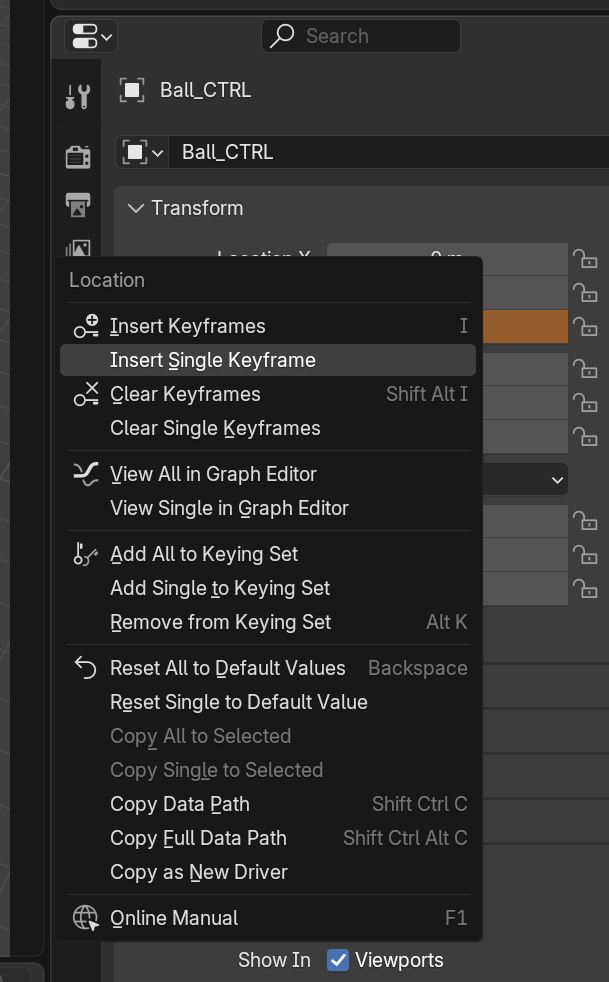
  • Right-click a property, select Insert Single Keyframe
  • Scrub the blue handle in the timeline to change the frame
  • Change the value with a gizmo, or in the editor
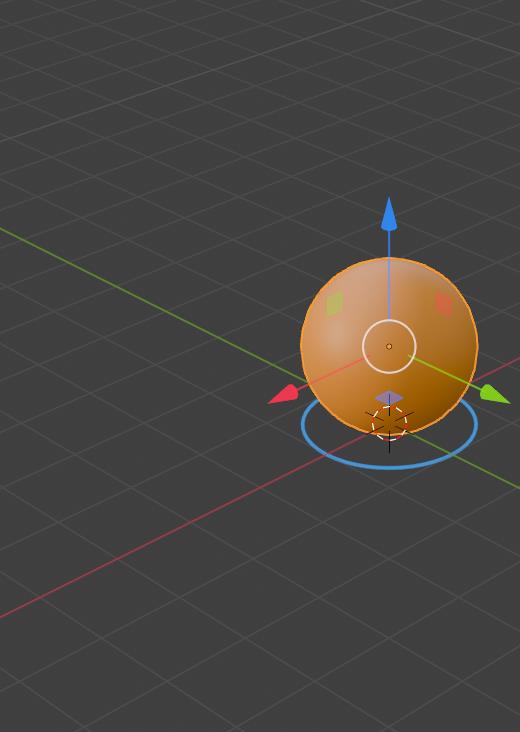
An orange ball with a transform gizmo (blue Z arrow, red and green arrows, white circle) and a selection ring on a grey grid
Keyframe context menu from right-clicking a property: Location header, Insert Keyframes (I), Insert Single Keyframe (highlighted), Clear Keyframes (Shift Alt I), keying set and copy options
An Introduction to Blender and 3D Animation22
Animation//Exercise
Make your ball bounce
An Introduction to Blender and 3D Animation23
Animation//Next week

Spend an hour on the bouncing ball

  • Focus on getting comfortable: navigating, transforming, setting keyframes
  • Download and install Blender 4.5 at home, if you have a computer
  • Use the college computers, if you don’t — almost all have it
  • Try a beginner tutorial online, if you feel inclined
An Introduction to Blender and 3D Animation24
Animation//Resources

Keep watching, and follow along

A good series of videos that covers the introductory concepts in this classHere
A very thorough introduction to animating in BlenderHere

Follow along with the videos, if you watch them.

An Introduction to Blender and 3D Animation25